Google Ad Manager ads not showing: a ten-minute checklist
When ads do not show, the cause sits in one of four places: the page, the request, the response or the demand. Three console snippets tell you which, and a checklist covers the common causes in each.
On this page
- What we saw
- The four stages
- Step 1: is Google's script on the page, and is it ready?
- Step 2: which stage does a slot stop at?
- Step 3: ask Google what it thinks of the page
- Step 4: requested, but no response
- Step 5: a response, but an empty slot
- Step 6: rendered, and still no ad on the screen
- Mistakes we see
- How VisionForgeX handles this
- Frequently asked questions
- Where to go next
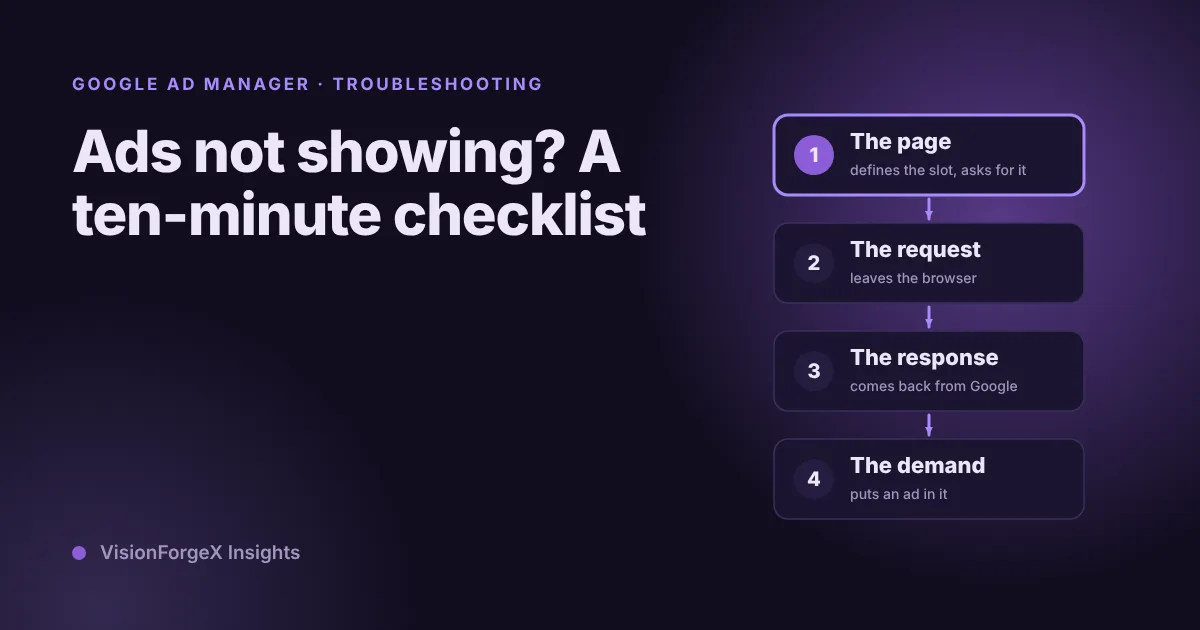
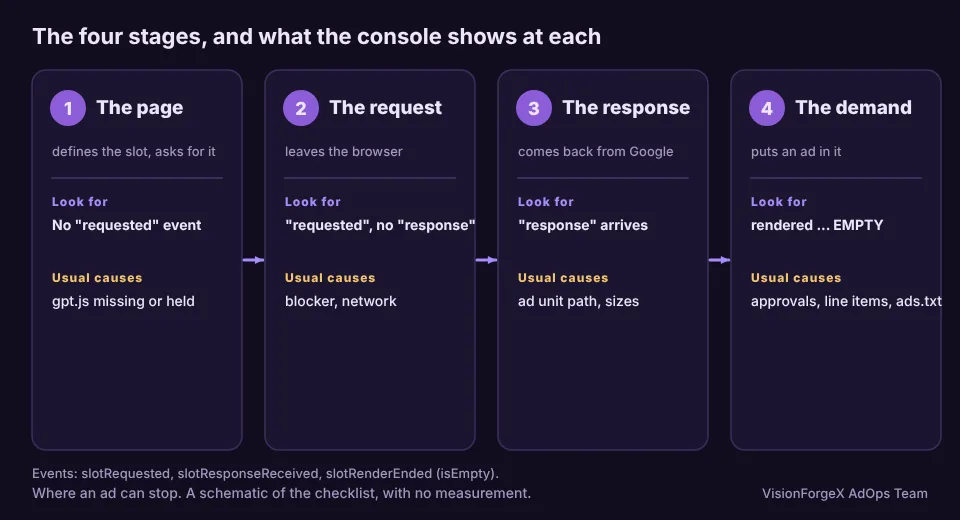
If Google Ad Manager ads are not showing, the first thing to work out is where they stop. An ad passes four stages: the page has to define a slot and ask for it, the request has to leave the browser, a response has to come back, and that response has to contain an ad. The causes at each stage are different, and so are the fixes. This checklist takes about ten minutes, and the first two steps are three lines of code each.
It is written for a publisher using Google's tag (gpt.js) on a website, with Ad Manager as the ad server. If you use an app or a plugin to place the tag, the same four stages apply.
What we saw
Most of our own "no ads" investigations did not end in Ad Manager. They ended on the page. Three examples from our gotcha list:
- No
gpt.jsline. A page whose tag did not include the line that loads Google's script made zero ad requests and showed no error. Nothing had failed, because nothing ran. - A stale file. A host served an old copy of our script for a long time whatever the cache headers said. The fix was to rename the file and change the version in the address.
- One character. A non-ASCII character in a regular expression broke the whole tag on a page that was served without a character set. The tag is ASCII only now.
All three look the same from the outside: the slot is there and no ad appears. The lesson for the checklist is to start from the browser, not from the Ad Manager screens.
The four stages
Step 1: is Google's script on the page, and is it ready?
Paste this in the console on a page where the ad should show:
const g = window.googletag;
console.log({
  scriptTag: !!document.querySelector('script[src*="/tag/js/gpt.js"]'),
  apiReady: !!(g && g.apiReady),
  slots: g && g.apiReady
    ? g.pubads().getSlots().map((s) => ({ id: s.getSlotElementId(), divInPage: !!document.getElementById(s.getSlotElementId()) }))
    : 'googletag not ready',
});
Read it like this:
scriptTag: falsemeans the page never asks for Google's script. Add the line, or find what removes it.scriptTag: truebutapiReady: falsemeans the script is there and has not run. A blocker, a speed plugin that holds scripts until the first tap, or a slow connection can all do this. Open the Network panel and look forgpt.js.- An empty
slotslist means no slot was defined. Your code callingdefineSlothas not run, or ran before the page was ready. divInPage: falsefor a slot means Google has the slot but the element it should fill is missing.
getSlots() is in Google's reference. We ran this snippet against a stand-in googletag while preparing this article. We have not run it against a live Google script.
If you use our tag, AdXWrapper.diagnose() prints the same facts and more: whether the Google script is on the page, whether its API is ready, how many slots were created and how many confirmed a first load.
Step 2: which stage does a slot stop at?
If Step 1 looks right, you need the events. They only show what happens after you add them, so add this before the ads load, from a script in the head, then reload:
window.googletag = window.googletag || { cmd: [] };
googletag.cmd.push(() => {
  const p = googletag.pubads();
  p.addEventListener('slotRequested',        (e) => console.log('requested', e.slot.getSlotElementId()));
  p.addEventListener('slotResponseReceived', (e) => console.log('response ', e.slot.getSlotElementId()));
  p.addEventListener('slotRenderEnded',      (e) => console.log('rendered', e.slot.getSlotElementId(), e.isEmpty ? 'EMPTY' : e.size));
});
Google lists these as ad events in its event samples. We ran the snippet against a stand-in, and our own tag reads isEmpty from the same render event. Check the property names in the reference if your version of the tag differs.
What the console tells you:
| You see | The ad stopped at | Next |
|---|---|---|
| Nothing for a slot | The page | Steps 1 and 3 |
requested, no response | The request | Step 4 |
response, then rendered … EMPTY | The demand | Step 5 |
rendered with a size, and still no ad on screen | Your page's CSS | Step 6 |
Step 3: ask Google what it thinks of the page
Run googletag.openConsole() in the console. It opens Google's Publisher Console on the page. Its Ad Slots tab has a card for each registered slot, and its Page Request tab has a timeline with warnings and errors. Google's Publisher Console guide also lists a keyboard shortcut and a bookmark.
The warnings worth knowing are on Google's console messages page. Four of them explain most empty pages:
- "Div ID passed to googletag.display() does not match any defined slots":
display()ran beforedefineSlot(), or the slot was never defined. - "Error in googletag.display: could not find div with id": no element with that ID existed when the slot was displayed.
- "Rendering delayed due to slot element not being attached to the DOM": the container was added to the page too late.
- "Slot ... cannot be refreshed until PubAdsService is enabled": a refresh was called before
enableServices().
Step 4: requested, but no response
Open the Network panel and filter for gampad. You should see a request to Google's ad server for each slot, or one for several slots if the page batches them. If there is no such request, though the event says one was made, something between the page and Google dropped it. Ad blockers do this, and so do browser privacy settings and some networks. Test in a clean browser profile with no extensions and on a phone connection. If it works there, the cause is on the visitor's side, and nothing in Ad Manager will fix it.
A header bidding setup can also hold the request. If you hold the Google request until Prebid answers, a Prebid script that never loads leaves you with no requests at all. Our header bidding timeout guide has a failsafe that stops this.
Step 5: a response, but an empty slot
The page and the request are fine. Ad Manager answered with no ad. Causes on the Google side, in the order we would check them:
- The ad unit. Is the path in the code the one in Ad Manager, including the network code? A typo gives you a valid-looking slot with nothing behind it.
- Demand switched on. Is there a line item, or an active Exchange setup, that targets this ad unit and these sizes? Sizes must match what the slot declared.
- Approvals. A new site, or a site you added through a partner, may need approval before it serves. How Google MCM works and how Google Ad Exchange works for publishers cover who approves what.
- ads.txt. Buyers often ignore inventory whose seller is not listed in your file. A missing line can cut fill without any error.
- Targeting and protections. Floors set too high, blocked categories, advertiser blocks, and a country or device that nobody bids for all lead to empty responses.
- A brand-new unit. It can take a while for demand to appear. Test with a known-good unit on the same page.
Do not change several of these at once. Change one, wait, look again.
Step 6: rendered, and still no ad on the screen
rendered with a size means Google delivered an ad. If you cannot see it, the page is hiding it. Look for a container with display: none, a height of zero, overflow: hidden on a parent, or a sticky bar covering it. In the Elements panel, select the slot's div and read its box.
Mistakes we see
- Starting in Ad Manager. The cause is on the page more often than in the settings.
- Testing only on your own machine. Your extensions, your cache and your network are not your readers'.
- Changing the tag and the settings together. You will not know which one fixed it.
- Reading a console without the listeners. Events that already happened are not recorded. Add the listeners first, then reload.
- Forgetting the cache. If a fix does not change anything, check that the browser is not running the old file.
How VisionForgeX handles this
Our tag logs why a slot did not load, in the console and in diagnose(), and our setup scanner looks at a site for the known causes, such as speed plugins that hold ad scripts. The developer guide lists the ways to connect a site, and what each one needs. If a site of yours still shows nothing after the checklist, send us the page address and the console output from Step 2.
Frequently asked questions
Why do my Google Ad Manager ads show in preview but not on the live page?
Preview and test tools use test creatives and your own browser. The live page depends on demand, approvals and ads.txt, and on your reader's browser. Run the event listeners on the live page to see where the slot stops.
Why is the slot empty even though the request was sent?
The request and the response worked, and Ad Manager had nothing to deliver. Check the ad unit path, the sizes, the demand that targets the unit, approvals and ads.txt, in that order.
Can an ad blocker be the reason?
Yes, for the visitor who has one. It shows as a request that never leaves, or a Google script that never loads. It does not explain a page that is empty for everyone.
How long does a new ad unit take to start showing ads?
It varies, and we do not have a figure we would stand behind. If a new unit stays empty, test with one that is known to serve on the same page, and compare.
Does a missing ads.txt line stop ads completely?
Not completely, but it can reduce fill, because some buyers skip inventory from sellers they cannot find in your file. It is the cause to rule out whenever fill fell without a change in the page.
Where to go next
If the ads show but sit in the wrong place, see ads inside cards, tables and headings. If they show but move the page, read layout shift from ads.
Read next
More on Google AdX and MCM →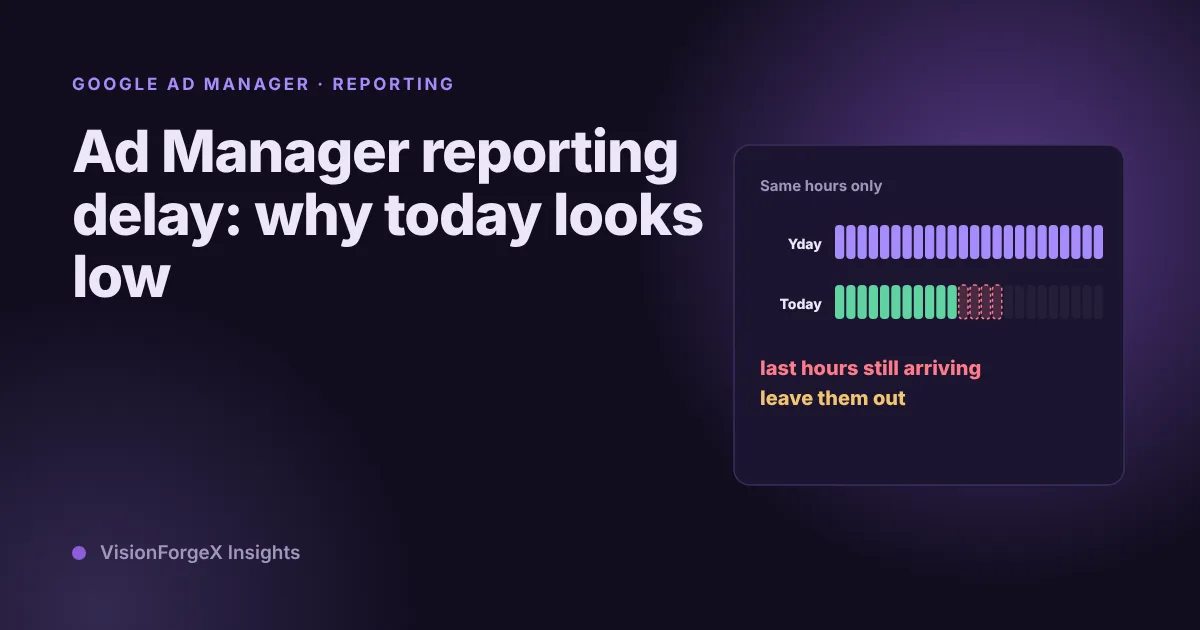 Google AdX and MCM
Ad Manager reporting delay: why today's numbers look low
Today's Ad Manager numbers are always partial, and yesterday's can still move. What Google says about how fresh the data is, the time zone trap, and a small script that compares today with the same hours of yesterday.
 Google AdX and MCM
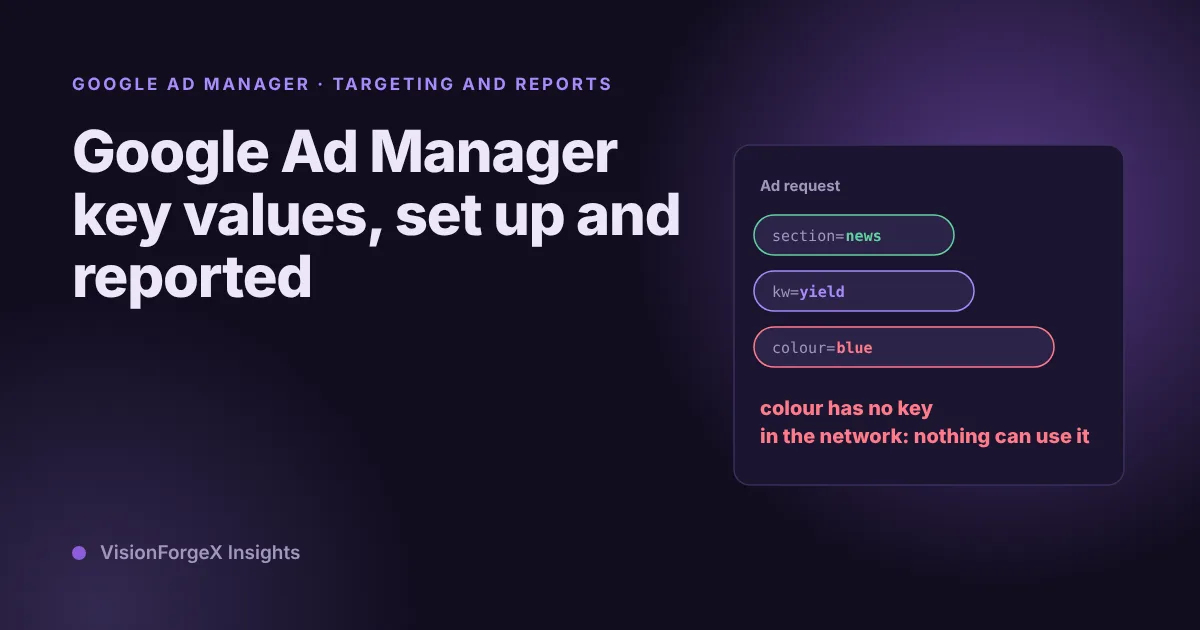
Google Ad Manager key values: set up, send and report on them
Key-values tell Ad Manager what a page is about, so a line item can target it and a report can split by it. How to create the key, send values from the page, stay inside Google's limits, and avoid the trap of values nobody can report on.
 Google AdX and MCM
Google AdX for Publishers: How to Get Access and What It Pays
Google AdX explained for publishers: how the first-price auction sets your price, AdX vs AdSense, what drives earnings, how to get access and set it up.