What Is Google MCM? How It Works and How to Choose a Partner
 VisionForgeX Editorial TeamProgrammatic revenue specialists · Google MCM partner
On this page
- Why Google MCM exists
- How Google MCM works, step by step
- Manage Inventory vs Manage Account: which one you need
- Who gets paid, and how the money flows
- What Google checks before approving a child account
- ads.txt and sellers.json for MCM
- How to choose a Google MCM partner: 10 questions to ask
- How VisionForgeX works with MCM publishers
- Frequently asked questions
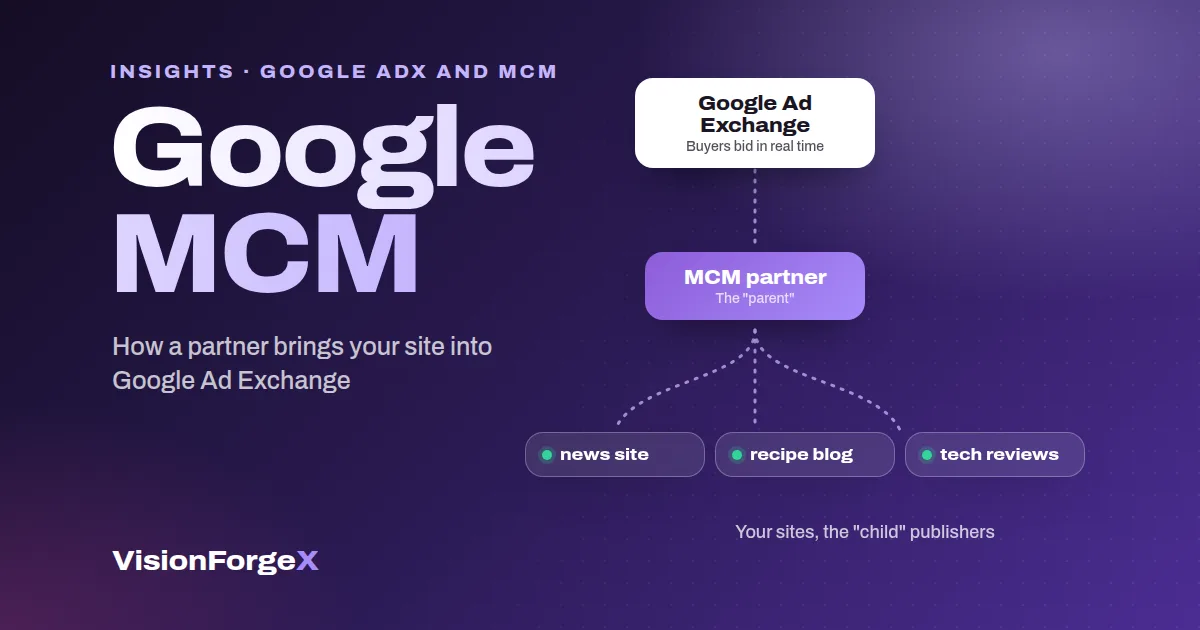
Google MCM (Multiple Customer Management) is the Google Ad Manager program that lets an approved partner, called the "parent", sell your ad space through Google Ad Exchange (AdX) on your behalf. For most independent publishers, Google MCM is the way into AdX: you keep your site and your content, and the partner brings the AdX access, the setup and the day-to-day optimization in exchange for a share of the revenue.
This guide explains how MCM works step by step, the difference between its two setups, who gets paid and when, what Google checks before it approves you, and the questions to ask before you accept any partner's invitation.
Why Google MCM exists
Google sells ad space through two very different doors. AdSense is open to almost any site and fills your pages automatically. Google Ad Exchange is the real-time marketplace where large advertisers, agencies and their buying platforms bid for each impression, with more control over prices, formats and deals. More buyers competing for the same impression usually means a higher price for it.
Google rarely gives smaller publishers their own AdX account. Instead, it lets a limited number of vetted companies with Google Ad Manager 360 bring publishers in under them. That arrangement is MCM. It replaced Google's older Scaled Partner Management (SPM) program in 2021, with stricter rules for who may act as a parent (AdExchanger).
In Google's own words, MCM "allows parent publishers to manage ad inventory and accounts for child publishers" (Google Ad Manager Help). You are the child; your partner is the parent.
How Google MCM works, step by step
- You agree terms with a partner. Revenue share, payment terms and which of the two MCM setups you will use (explained in the next section).
- The partner sends an invitation from its Google Ad Manager account to your email address. Use the address of the Google account you already have (AdSense, AdMob or Ad Manager). Google allows one account per publisher, and a second account is disapproved as a duplicate.
- You accept, and Google reviews you. Google checks your account, your sites and your identity. A disapproved child account cannot earn through MCM (Google Ad Manager Help).
- You add the partner's ads.txt lines to every site, so buyers know the partner is allowed to sell your inventory.
- The ad tags go on your pages. With Manage Inventory, the partner's tags carry both network codes, in the form
/PARENT_CODE,CHILD_CODE/ad-unit. With Manage Account, your own Ad Manager network serves the ads. - Ads run, and you get paid. Google closes each month's numbers around the middle of the following month; your partner then pays your share on the terms you agreed.
How money flows in Google MCM: with Manage Inventory Google pays the MCM partner, who pays the publisher; with Manage Account Google splits the payment between both](/insights/media/202610-a069c57464.webp "Manage Inventory vs Manage Account: who Google pays") : advertisers bid in Google Ad Exchange; with Manage Inventory Google pays the MCM partner, who pays the publisher; with Manage Account Google splits the payment between both
Manage Inventory vs Manage Account: which one you need
Google MCM has two delegation types. The partner proposes one in the invitation, and they work very differently (Google Ad Manager Help):
| Manage Inventory | Manage Account | |
|---|---|---|
| Where the setup lives | In the partner's Ad Manager network | In your own Ad Manager network |
| Who sees the reports | The partner, broken down by your network code | You, in your own network |
| Partner access to your account | None | Everything except billing |
| Ad tags | The partner's tags, with your network code added | Your own tags |
| How many partners at once | Up to 15 | Only one |
| Who Google pays | The partner receives 100%, then pays you | Google splits it between you both, at the agreed share |
| Best for | Publishers who want the partner to run everything | Publishers with their own Ad Manager and someone to run it |
You cannot have the same partner under both types at once.
Manage Inventory suits most independent publishers. There is nothing for you to set up in Ad Manager, and you can still work with other partners for other inventory. The trade-off is visibility: the reports live in the partner's account, so you depend on the partner to share them honestly.
Manage Account suits publishers who already run their own Google Ad Manager, have direct advertisers of their own, or simply want to see Google's numbers first-hand. Google pays your share directly, which removes one step of trust. The trade-off is that the partner gets wide access to your account, and you can only have one.
Who gets paid, and how the money flows
The revenue your reports show is already net of Google's own fee. What happens next depends on the delegation type:
- Manage Inventory: Google pays the whole amount to the partner. The partner pays you your share, minus any deductions you agreed (for example invalid traffic Google clawed back, or a transfer fee).
- Manage Account: Google's auto-payment splits the amount between you and the partner at the percentage you agreed, which can be anything from 0 to 100 percent, and pays each side directly.
A worked example, with round numbers chosen only for illustration: your sites earn $1,000 in AdX revenue in March, and your agreement gives you 80 percent. Google finalizes March around mid-April. Under Manage Inventory, Google pays the partner $1,000 and the partner pays you $800 on its payment date. Under Manage Account, Google pays you $800 and the partner $200 directly.
Two details matter more than the headline percentage:
- The share of what? A share of the revenue after Google's fee and after invalid-traffic deductions is normal. A share of a figure the partner calculates its own way is not. Ask which line of which report your share is calculated on.
- When, and how? Most partners pay 30 to 60 days after the month ends. Ask for the date, the minimum payout and the payment methods, and check that one of them works well in your country.
What Google checks before approving a child account
Google does not publish a minimum traffic level for MCM (partners often set their own). What it does check:
- One publisher, one account. Accept the invitation with the email of the Google account you already have.
- Sites you own and run, with real content. Parked, copied or unfinished sites are refused.
- Google's publisher policies. No copyrighted material you don't own the rights to, and nothing in Google's restricted categories without the right settings.
- Your identity and address. Google asks the account holder to verify identity and, in many cases, a postal address with a PIN before earnings are paid.
- Valid ads.txt on every site.
- Clean traffic. Bought traffic, click exchanges and bots lead to deductions first and closed accounts later.
Approval usually takes from a few days to a few weeks. If Google turns you down, the reason is almost always one of the points above: fix it and ask your partner to resubmit. A disabled account can be appealed through Google's policy or invalid-traffic appeal forms.
ads.txt and sellers.json for MCM
ads.txt is a public file at yourdomain.com/ads.txt that lists who may sell your ad space. Buyers check it, and inventory sold by a seller that is not listed is treated as unauthorized, which means lower bids or none at all.
Your partner will give you its exact lines. The core line names Google, the partner's publisher ID and the relationship:
google.com, pub-0000000000000000, RESELLER, f08c47fec0942fa0Google also expects MCM parents to publish a sellers.json file listing their child publishers' seller IDs, and recommends a DIRECT line for the parent, so buyers can follow the chain from the advertiser to your page (Google Ad Manager Help). Add every line your partner gives you, exactly as given, and keep your existing lines unless the partner explains why one should go.
How to choose a Google MCM partner: 10 questions to ask
Every MCM partner reaches the same AdX buyers. What differs is how well they set up your pages, how honest the reporting is and how reliably you get paid. Ask these before you accept an invitation:
- Are you an MCM parent yourselves, or reselling another company's access? Search for the partner's name in Google's own sellers.json at
realtimebidding.google.com/sellers.json(Google); a real parent is listed there. - Which delegation type, and why? You should understand the answer to the comparison above.
- What exactly is my revenue share calculated on?
- When and how do you pay? Date, minimum payout, methods, currency and fees.
- What will I see, and how often? Daily reporting by site and format is reasonable to expect.
- How do you handle invalid-traffic deductions? They should be shown to you line by line, never silently netted out.
- What will you change on my pages? Number of ads, placements, refresh, page speed. More ads is not always more money.
- Do you add other demand? Header bidding and other exchanges compete with AdX for the same impression and can raise the price.
- Who do I contact, and when? A named person, in your time zone, is worth more than a ticket form.
- How do I leave? Notice period, final payment, and what happens to your tags and account.
Red flags
- A guaranteed RPM or CPM before they have seen your traffic.
- Asking for your Google password, or asking you to open a second Google account.
- No entry in Google's sellers.json, or one under a different company name.
- Reports you are never allowed to see in full.
- Pressure to add aggressive refresh, stacked ads or pop-ups, which put your account at risk.
How VisionForgeX works with MCM publishers
VisionForgeX is a Google MCM partner and supports both Manage Inventory and Manage Account. In practice, every publisher gets:
- A dashboard with their own numbers, by day, site and format, plus page speed and Core Web Vitals.
- A transparent Payments page: monthly earnings, every deduction (invalid traffic, tax, fees) as its own line with the reason, every payment with a receipt, and a running balance.
- Payment by bank wire, PayPal, Payoneer or USDT (TRC20), chosen per site.
- Policy protection built in: placement checks against Google's layout rules, invalid-traffic filtering and a watch on your MCM and policy status.
- Header bidding alongside AdX, so more buyers compete for every impression.
If you want to see what your sites could earn through AdX, send us your site or book a call.
Frequently asked questions
Is Google MCM free for publishers?
Yes. Google charges nothing to join; the MCM partner is paid through its revenue share. Be wary of any partner that asks for a setup fee.
Do I need Google Ad Manager to join MCM?
You need an approved Google account as the child. With Manage Account you run your own Ad Manager network. With Manage Inventory the partner runs everything in its own network; if you only have AdSense, the partner sends the invitation to your AdSense account's admin email.
How long does MCM approval take?
Usually from a few days to a few weeks, depending on Google's review of your sites and your identity verification. Having ads.txt in place and your identity details ready makes it faster.
Can I work with more than one MCM partner?
Yes, under Manage Inventory you can have up to 15 partners for different inventory. Under Manage Account you can have only one, and the same company cannot be your partner under both types.
Is Google MCM the same as Google AdX?
No. Google Ad Exchange is the marketplace where buyers bid for your ad space; MCM is the program that gives you access to it through a partner.
What happens if my MCM account is rejected?
Google usually rejects a child account for a duplicate account, a policy issue, thin or copied content, or invalid traffic. Fix the cause, then ask your partner to resubmit the invitation.
Written by
VisionForgeX Editorial Team
Programmatic revenue specialists · Google MCM partner
The VisionForgeX team runs Google Ad Exchange, header bidding and OpenRTB auctions for publishers every day. Every article is written from that work and checked against live data before it is published.
- Google Ad Manager and Ad Exchange (MCM) operations
- Prebid.js and OpenRTB integrations
- Revenue optimization across thousands of publisher pages
Read next
More on Google AdX and MCM →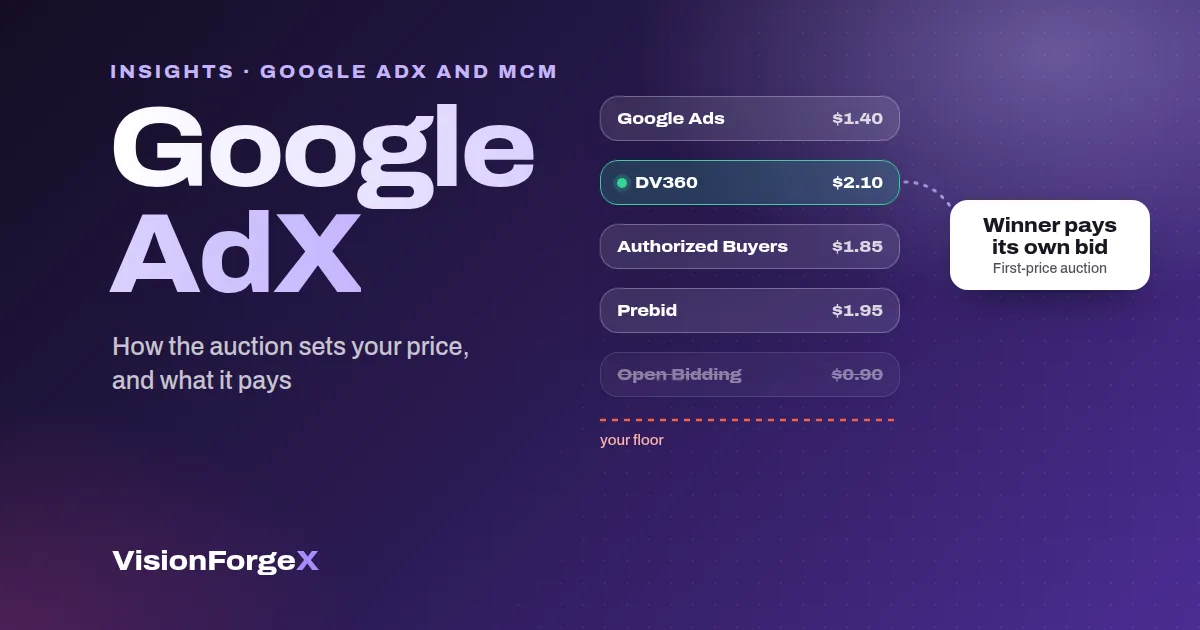 Google AdX and MCM
Google AdX for Publishers: How to Get Access and What It Pays
Google AdX explained for publishers: how the first-price auction sets your price, AdX vs AdSense, what drives earnings, how to get access and set it up.
 Google AdX and MCM
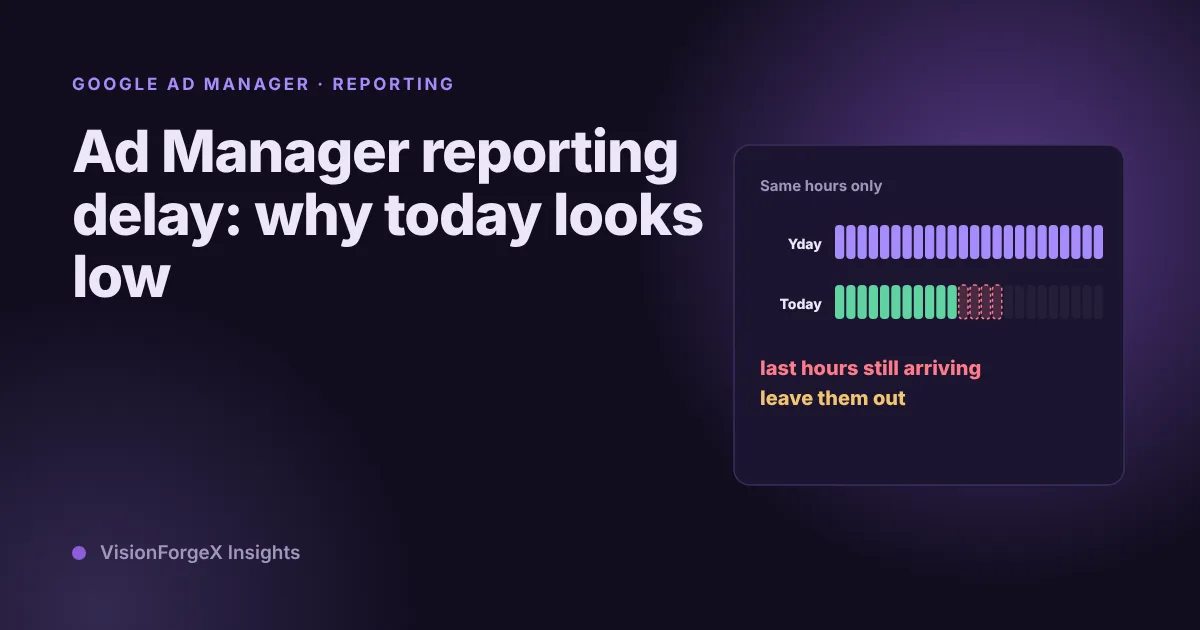
Ad Manager reporting delay: why today's numbers look low
Today's Ad Manager numbers are always partial, and yesterday's can still move. What Google says about how fresh the data is, the time zone trap, and a small script that compares today with the same hours of yesterday.
 Google AdX and MCM
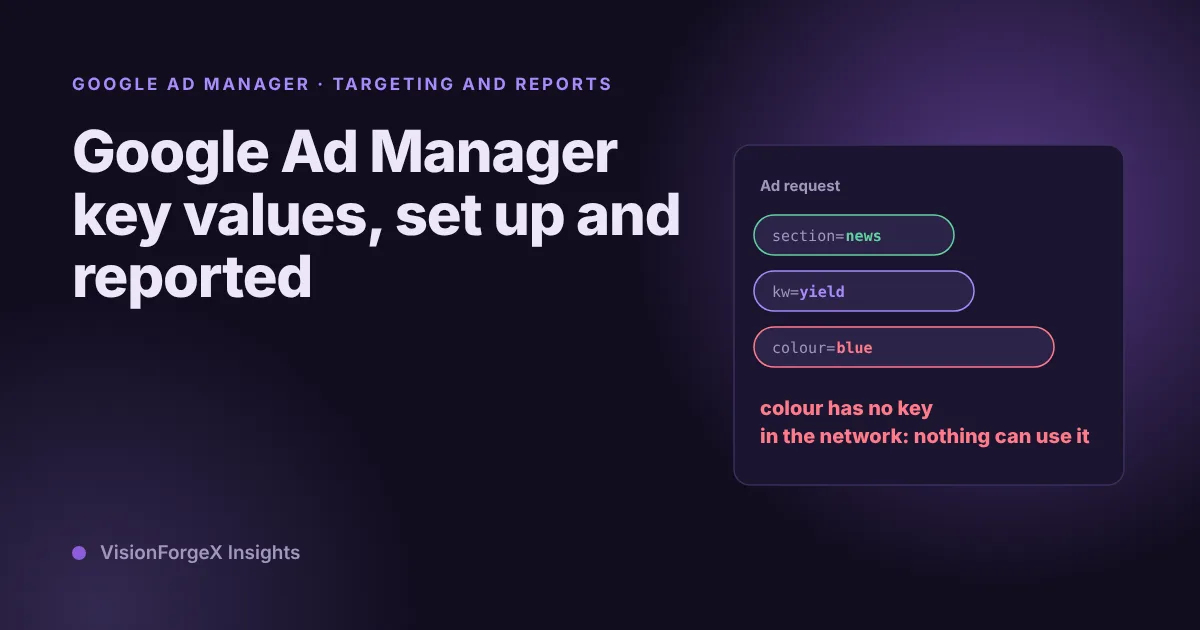
Google Ad Manager key values: set up, send and report on them
Key-values tell Ad Manager what a page is about, so a line item can target it and a report can split by it. How to create the key, send values from the page, stay inside Google's limits, and avoid the trap of values nobody can report on.